Desks of windows
Updated: 2026-11-14
Most sections of GoGoBots are desks: a screen of free-floating windows that you arrange the way you work. Each window is a full tool — a list of bots, a scanner, a chart, a capital curve — and you decide which ones are open, how big they are and where they sit. Your layout is saved to your account, so it comes back on your next visit and on your other devices.
Which sections are desks
| Section | What its windows are for | Open |
|---|---|---|
| Money | Capital, positions, exposure, journal, reconciliation, wallets and keys | Open Money → |
| Scanner | Finding ideas on Polymarket, crypto, US stocks and options | Open Scanner → |
| Algo trading | Strategies, the Backtester, AI testers, folders of runs | Open Algo trading → |
| My bots | Every bot you run, by market, with its results | Open My bots → |
| Terminal Turbo | Manual trading: charts, order books, tickets, portfolio | Open Terminal Turbo → |
All five desks work the same way. Terminal Turbo adds trading-specific tools on top — a venue chip on each window and link groups between windows. See Terminal Turbo.
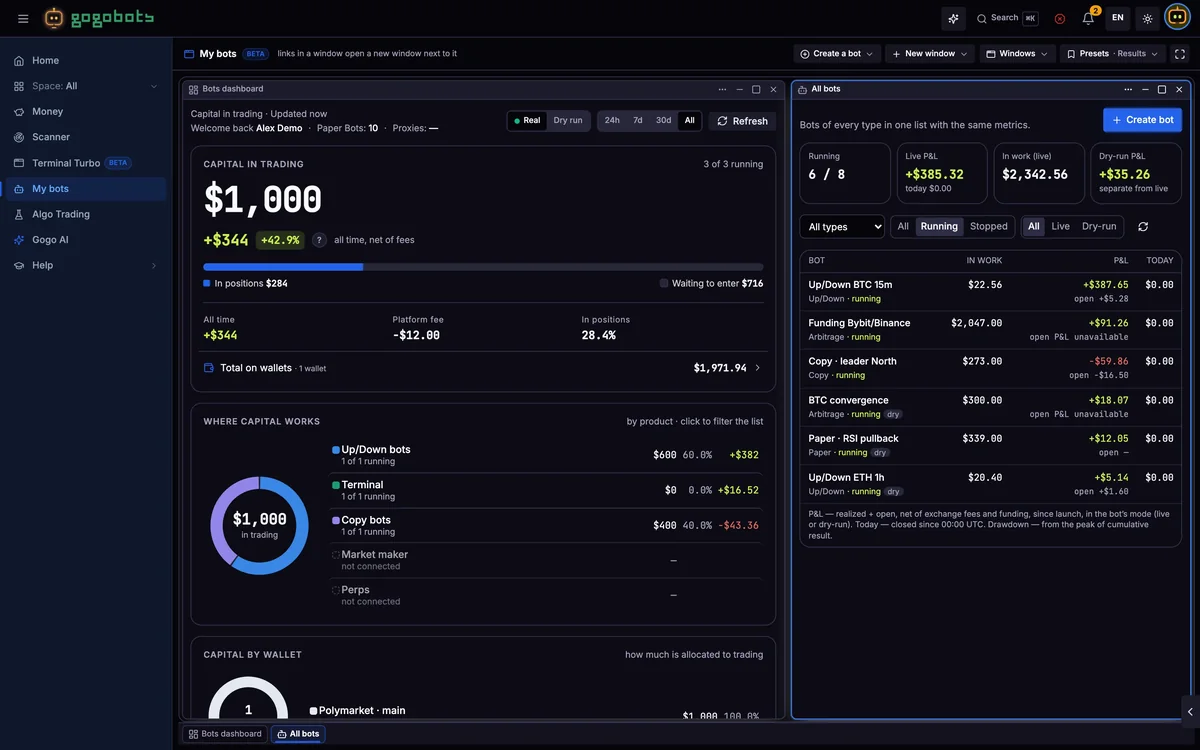 The My bots desk: two windows side by side, each with its own controls. Numbers are demo data.
The desk header
Every desk has the same strip at the top.
| Control | What it does |
|---|---|
| New window | The catalog of every window this desk can open, grouped by market or topic. |
| Windows | What’s on the desk, layout tools (Tile all, Cascade, Align all…, Same size as the active window…), Minimize all, Restore all, Clear desk…, Whole desk to another monitor, the New windows placement setting and Templates. |
| Presets | Ready-made layouts for this desk and your own. See Layouts, presets and monitors. |
| Full screen | Hides everything except the desk. |
My bots and Algo trading also have Create a bot in the header. Money has a market and period selector that all its windows share.
Opening a window
There are three ways:
- New window in the header. Pick a window from the catalog.
- What’s on the desk (below). Read what a window does, then press Open.
- Right-click the desk header or a window header to open the wheel menu, then Add window.
If a window of that kind is already open, the desk brings it to the front instead of opening a copy. Minimized windows wait in the bar at the bottom of the desk.
Links inside a window. On Money, Scanner, Algo trading and My bots, a link inside a window (a bot card, a backtest run, a wizard) opens a new window next to it, so you don’t lose the list you came from. A link to the same screen with different filters stays in the same window. A link to another section — say, from a bot to Terminal Turbo — opens that section full screen. To see a window’s screen as a normal page, use Open as a page in the window’s ⋯ menu.
What’s on the desk
What’s on the desk is a built-in guide to every window the desk can open. It’s the fastest way to learn a desk you haven’t used before. It’s available on Money, Scanner, Algo trading and My bots.
Where to find it: Windows → What’s on the desk (the first item), or the top of the New window catalog. The guide is itself a window, so you can keep it open next to your work. There’s one guide per desk.
What’s inside:
- A tile for every window of the desk, grouped the same way as the New window catalog. Each tile shows the window’s name and one line about what it’s for.
- Details on a tile expands three parts: What it shows, What you can do and Related to (which other windows it sends you to or takes data from). Hide collapses it again.
- An open badge on windows that are already on the desk.
- Open puts the window on the desk. For a window that’s already open, the button reads Show and brings it to the front.
- Find a window… — a search box that filters tiles by name and description.
- Show everything — see below.
The guide only lists windows your plan and connected accounts give you access to. For example, the Brokers window appears once broker accounts are available to you.
It opens by itself on an empty desk. If you close the last window on a desk, the guide opens so you’re never left with a blank screen. It doesn’t do this after Clear desk…, because then you asked for an empty desk.
For the full list of windows on every desk, see Window catalog.
Show everything on the desk
Show everything in the guide opens every window of the desk at once and arranges them as tiles with no gaps. A dialog first tells you how many current windows will close and how many will open — press Show everything to confirm.
Use it to get a quick tour of a desk. Windows that already sit on another monitor aren’t duplicated. This action is for the computer; on a phone, windows are shown one at a time.
Clear the desk
Windows → Clear desk… closes every window on the desk. The dialog shows how many windows will close; confirm with Close all windows. Your presets are not touched, and you can reopen any window from the header or the guide.
Where new windows land
A new window doesn’t cover the ones you’re working with. Under Windows → New windows you choose how it’s placed:
| Mode | What happens |
|---|---|
| Into free space (default) | The window takes the largest free area. If there’s no room, the largest window splits in half to make space. If that would be too small, all windows are re-tiled. |
| On top, as before | The window opens on top of the others. |
| Re-tile everything | Every new window re-tiles the whole desk. |
If you applied a Template from the Windows menu, new windows go into the template’s slots (“New windows go into this template”). Tile or Cascade turns that off. The placement choice is remembered in this browser.
Closing a window
When you close a window, its neighbors grow to fill the space — but only when they cover that side of the closed window cleanly. In a cascade or a loose arrangement, the gap stays and the next new window takes it. This applies to Terminal Turbo as well.
To close all windows of a desk at once, use Clear desk…. In Terminal Turbo, the same command is Windows → Close all….
Links between windows
- Terminal Turbo links windows on purpose: put windows in the same link group and a coin or market you pick in one of them goes to the chart, order book and ticket of the same group. See Terminal Turbo.
- Scanner links some windows for you. Order flow windows, US stock windows and the Arbitrage preset’s pair windows follow the same coin or ticker.
- Money shares one market and period selector across all its windows.
- On Algo trading and My bots, windows are independent; links inside them open new windows next to the current one.
On a phone
On a phone each window fills the screen. The Windows button at the bottom switches between them, and presets are in the add-window sheet. See Layouts, presets and monitors and Mobile.