My bots
Updated: 2026-11-14
My bots is where you watch and control every bot you run, whatever it trades: Polymarket Up/Down and copy bots, paper bots, arbitrage bots on your exchange keys, and strategy bots for crypto and stocks. Each bot type keeps its own settings and its own card, but the overview uses the same metrics for all of them. That way you can see at a glance what’s running, how much money is at work and what needs your attention.
Bots are one of two ways to trade on the platform. You can also trade by hand in Terminal Turbo. Both paths reach the same markets.
Where to find it
Open My bots in the main menu. Open My bots →
My bots is a desk: a screen of free-floating windows, built like Terminal Turbo. Links inside a window open a new window next to it, so you can keep a bot list and a bot card side by side. On a phone, the Bots tab in the bottom bar takes you here.
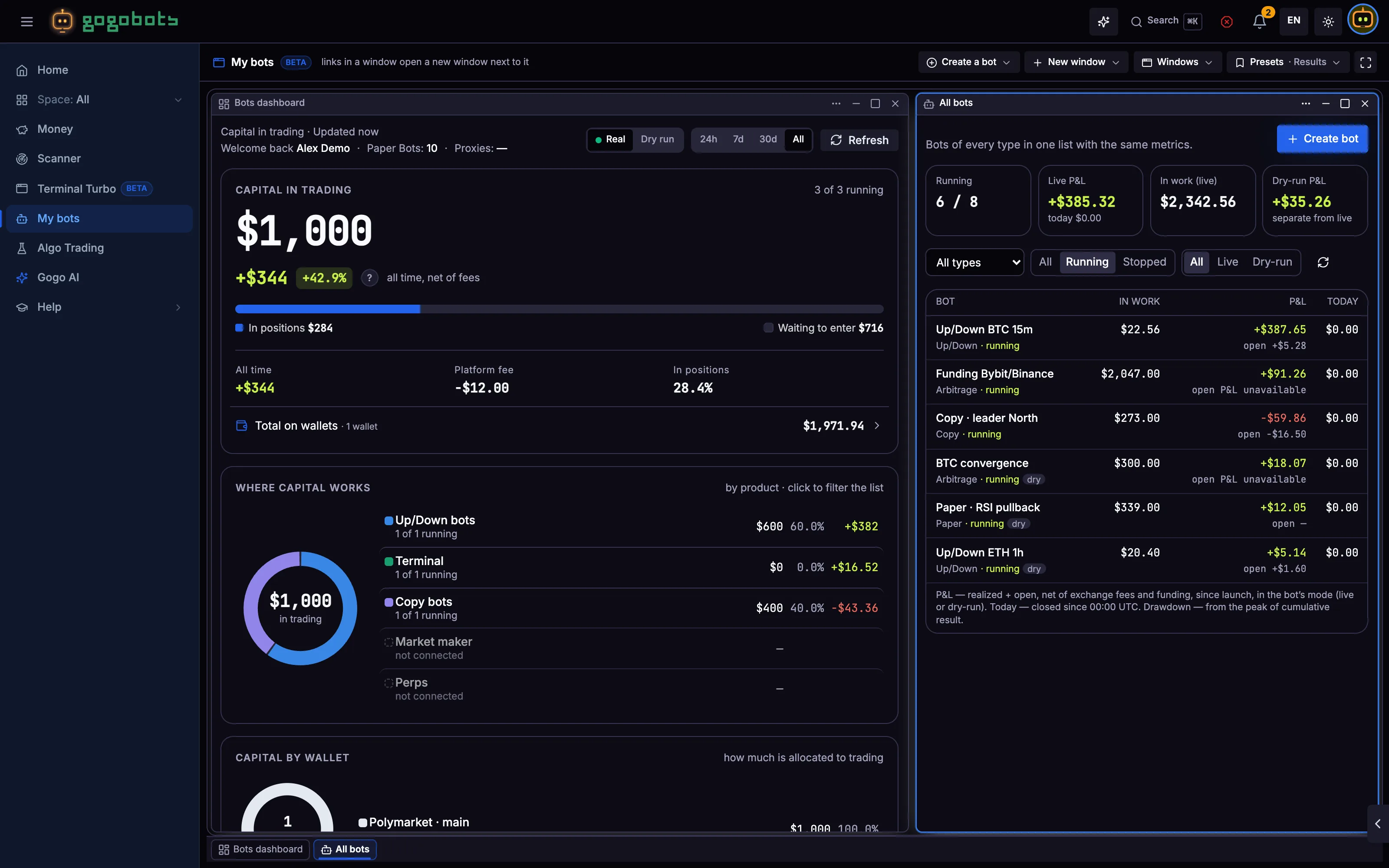 The Results preset: Bots dashboard (capital in trading, where capital works) next to All bots. Demo numbers.
My bots and Algo trading
The menu has two neighboring sections that are easy to mix up:
| Section | What it’s for | What you’ll find there |
|---|---|---|
| My bots | Watching and controlling bots that already exist | Every bot list, bot cards, start and stop, results, copy-bot trades, Multimarket summary |
| Algo Trading | The workshop where bots come from | Strategies, the Backtester and its runs, the strategy library, indicators, AI helpers (Tester, Q-Tester, Portfolio Manager, AI Gogo Watcher) |
A simple rule: if you’re asking “what are my bots doing?”, go to My bots. If you’re asking “what should my next bot trade?”, go to Algo Trading.
The desk header
| Control | What it does |
|---|---|
| Create a bot ▾ | Starts a new bot of the type you pick (see below). |
| New window ▾ | Opens the window catalog, grouped as All, Polymarket, Crypto and Stocks. |
| Windows ▾ | Lists open windows, layout options and templates. |
| Presets | Ready-made layouts, plus your own saved ones. |
| Full screen | Hides everything except the desk. |
The layout is saved to your account. You can spread the desk across several monitors, like Turbo.
Built-in presets
| Preset | Windows |
|---|---|
| Overview (default) | All bots, Up/Down bots, Arbitrage bots |
| Polymarket | Up/Down bots, My Copy Bots, Paper Bots, Copy-bot trades |
| Crypto | Arbitrage bots, crypto Strategy bots, Multimarket summary for crypto |
| Stocks & derivatives | Stock Strategy bots, Multimarket summary for stocks |
| Results | Bots dashboard, All bots |
The windows
| Window | What it shows |
|---|---|
| All bots | Copy, arbitrage, Up/Down and paper bots in one list with the same metrics. Filters by type, status (All, Running, Stopped) and mode (All, Live, Dry-run). Start and stop from the row. |
| Bots dashboard | Capital in trading, where it works by product and by wallet, the result curve and “needs attention”. Switch Real / Dry run and the period (24h, 7d, 30d, All). |
| Up/Down Bots | Your Polymarket Up/Down bots, live and dry run. See Up/Down bots. |
| My Copy Bots and Copy-bot trades | Copy bots with the portfolio overview, and every copied trade in one table. See Copy bots. |
| Paper Bots | Polymarket strategies running on virtual money for a set term. See Paper, dry run and live. |
| Arbitrage bots | Bots that trade price gaps and funding between your exchanges. See Arbitrage bots. |
| Strategy bots (crypto, stocks) | Multimarket bots: rules, DCA and grid strategies on exchange or broker accounts. See DCA and grid bots. |
| Multimarket summary (crypto, stocks) | Capital, result, combined equity curve, allocation by symbol and bot correlation for one market. |
Reading All bots
The top of the All bots window shows four totals:
- Running — running bots out of all bots.
- Live P&L — the result of bots on real money, with today’s part.
- In work (live) — money in open positions or deals of live bots.
- Dry-run P&L — kept separate. It’s never added to the live figure.
Every row shows the bot, its type and status (running, degraded, stopped), money In work, P&L with its open part, and Today. The definitions are the same for every type:
- P&L is realized plus open result, net of exchange fees and funding, since launch, in the bot’s current mode.
- Today counts trades closed since 00:00 UTC.
- Drawdown is measured from the peak of the cumulative result.
If a row says open P&L unavailable, the open result couldn’t be read right now. That isn’t zero. For more detail, see The bot card.
Creating a bot
Press Create a bot ▾ and pick a type:
| Item | Market | Where it leads |
|---|---|---|
| Up/Down — test (no money) / Up/Down — live | Polymarket | The Backtester, on its Strategies window: pick or build a strategy, run it, then press To bot |
| Paper bot | Polymarket | The same path, ending on virtual money |
| Copy bot | Polymarket | The list of leaders to copy. You start from a leader’s card. |
| Arbitrage bot | Crypto | The arbitrage bot templates |
| Strategy bot | Crypto, Stocks | The Backtester with Multimarket strategies, then To bot |
The bot wizard
Whichever way you come in, the bot is finished in one wizard, Create a bot. It follows the same four steps for every type: Strategy → Backtest → Dry-run → Live.
- Strategy. Pick or create the strategy, choose a leader (copy bots) or a template (arbitrage). Steps you already completed on the way in are filled in for you.
- Backtest. Start a run or take a ready one. All results, validation and comparison are on its tabs. Copy and arbitrage bots skip this step: it says “not needed for this type”.
- Dry-run. The bot trades on live prices without real money. You can skip it with Skip dry-run — go Live. The wizard warns that the bot then goes straight to real money.
- Live. The same bot moves to real money: your Polymarket wallet, exchange account or broker account. You check the balance, capital and limits, and tick I understand: the bot will trade my money. Nothing trades for real until you do.
The bot keeps its whole history when it moves from dry run to live. The card you watched in dry run is the card you keep.
Limits and risks
- A bot follows its rules. It doesn’t know about news, outages or your other positions unless its rules do.
- Results shown in the desk are each bot’s own bookkeeping. They don’t have to match Capital and positions or the Journal to the cent. Those screens look at the same money from the account side.
- Stopping some bot types also closes positions. Stopping an arbitrage bot closes its open deals, and the list asks you to confirm first.
- To halt everything at once, use the Emergency stop.