GoGoBots on your phone
Updated: 2026-11-14
On a phone or tablet, GoGoBots switches to a mobile mode built for checking in and acting fast. You see where your money is, which bots are running, what needs attention, and you can trade by hand on Polymarket, crypto exchanges, stocks and options. There is nothing to download: it is the same app in your browser, at the same address, with the same account.
How to open it
Open app.gogobots.ai in your phone’s browser and sign in. The mobile mode turns on by itself on screens up to 1279 px wide. That includes most tablets.
Install it to your home screen
Installed, the app opens full screen like a native app, and it can receive push notifications.
- iPhone (Safari): tap Share, then Add to Home Screen.
- Android (Chrome): open the browser menu and choose Install app or Add to Home screen.
Then turn on push: open the bell and press Enable next to Push notifications on this device. On iPhone, push works only from the installed app (iOS 16.4 or later). See Notifications.
The bottom bar
| Tab | What it is for |
|---|---|
| Pulse | Your money and everything that needs attention, on one screen |
| Running | Bots that are running and your open positions |
| Trade | Manual trading: Polymarket, crypto, stocks, options |
| Ideas | Scanners and their signals |
| Gogo AI | The assistant, one tap away |
The ☰ menu at the top left holds everything else: your money screens, wallets and exchanges, notifications, profile, support, the guide, and links to the full computer screens.
Pulse
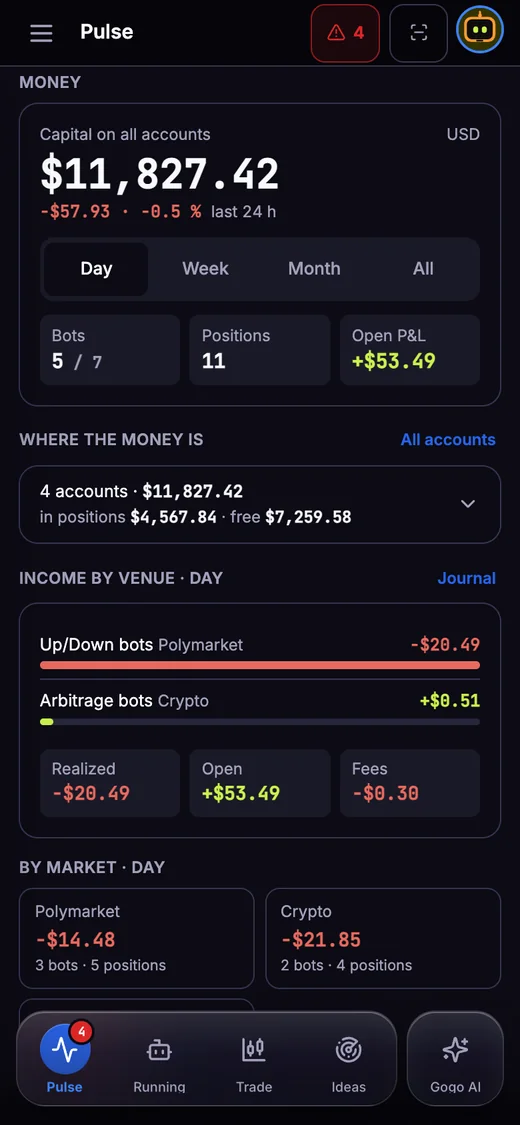
Pulse shows capital, bots, positions and income by venue in one scroll. Numbers are demo data.
- Money: capital on all accounts with the change for Day, Week, Month or All, plus the number of bots running, open positions and open P&L.
- Where the money is: how much sits in positions and how much is free, across all accounts. Expand it to see each account.
- Income by venue: realized and open P&L and fees, with a link to the Journal.
- By market: Polymarket, crypto and stocks side by side.
- Needs attention: the warning badge at the top opens the list, most urgent first. Bot errors, bots stopped by protection, critical notifications. Each item has Open and Why? (asks Gogo AI to explain).
Stop everything
Stop everything on Pulse opens a sheet where you choose what to stop:
- Stop bots and close everything: bots stop and positions close at market. Arbitrage closes both legs.
- Only stop bots: bots stop opening trades and positions stay. Arbitrage bots close their own deals.
You hold the button for 2 seconds to confirm. Release it to cancel. Positions held by Polymarket bots stay open after the stop. Close them from the bot card. See Emergency stop.
Running
A list of your running bots and open positions, filtered by All, Bots, Positions or Problems, and by market.
- Tap a bot to open its card: result for the period, trades, win rate, maximum drawdown, and Full card for everything else. Stop bot asks you first.
- Tap a position to see size, entry and mark price, and liquidation distance on futures. Close at market asks you first. Trade opens the market in Trade.
- A position held by a bot says so. Stop the bot to manage it yourself.
Stopped bots are not listed here. Find them under ☰ → My bots.
Trade
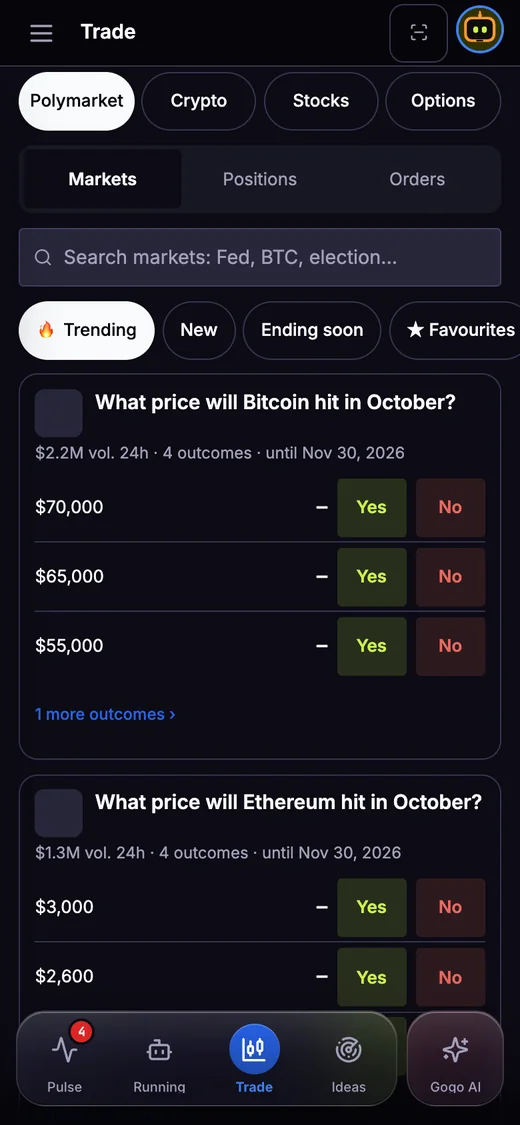
The Trade tab on Polymarket: search, Trending, New, Ending soon and Favourites. Numbers are demo data.
Pick a market at the top: Polymarket, Crypto, Stocks or Options. The app remembers your choice. Each market has Markets, Positions and Orders.
Polymarket. Search markets, browse Trending, New, Ending soon and your Favourites. A market page shows the chance chart, the order book, rules and your orders. Tap Yes or No to open the ticket. Tap a price level in the book to place a limit order at that price. Trading uses your Polymarket wallet.
Crypto. Trading uses your own exchange API key. Without one, the tab offers Connect exchange. Pick the exchange and Spot or Perpetual, then search a coin. The trade screen has a chart, a live order book and your positions, orders and history. Leverage and margin mode are shown as set on the exchange.
Stocks. US stocks and ETFs through your Alpaca account: chart, ticket with market, limit, stop and stop-limit orders, DAY or GTC, and extended hours.
Options. Three steps instead of the full builder: your outlook (Rise, Fall, Sideways or Big move), a strategy, then its numbers. The full Position builder is also under ☰.
Every order shows a review step, and only you can send it.
Ideas
Scanners made for the phone, grouped by market:
- Copy trading · Leaders and Event catalog for Polymarket
- Arbitrage scanner for crypto
- Stock screener for stocks
- Gamma monitor (GEX) for options
More scanners (Smart money, Order flow, Market now, Coin filter) open the computer version of the Scanner.
The Feed collects hits from your scanner alerts. Tap Later to keep a signal in Saved for later. My scanners shows what you saved on the computer: pairs, markets, leaders, alerts and watchlists. Alerts and filters are set up on the computer; the phone shows their results.
Gogo AI
The same assistant as on the computer. Ask about a bot, a position or a signal. From Pulse (Why?), a bot, a position or a signal you can send the question to Gogo AI with one tap, already filled in. See Gogo AI.
Tablets
Tablets use the same mode in two columns: a list on the left, the selected bot or position on the right. Pulse and Ideas also spread across the wider screen.
Prefer the full layout
Open the profile menu and choose Old app view to use the previous layout on this device. You can switch back at any time. For heavy work like building strategies, the backtester or many windows at once, a computer is easier. ☰ links to each of those screens.
Limits and risks
- Mobile networks drop. If an order shows no response, check Orders before you send it again.
- Closing at market on a phone is fast but final. The fill price can differ from the screen, especially in a thin book.
- Push can arrive late or not at all. Don’t rely on it alone for positions with liquidation risk.